10 Pro Tips for the docker run Command in 2026
Stop fighting with local dependencies. This guide explores the docker run command, covering interactive debugging, data persistence with volumes, and port mapping. Learn how tools like Kuikwit.com help centralize your team's growth.

When you're knee-deep in modern application deployment, you'll eventually find that the docker run command is the primary tool you reach for to get your code moving. It’s the foundational instruction that takes a static image and breathes life into it as a functional, isolated container. By the end of this, you’ll know exactly how to spin up your environment without the usual "it works on my machine" headache.
What is the docker run command?
The docker run command is the core tool used to create and start a new container from a specific Docker image. It essentially performs two tasks in one: it creates a new container instance from a read-only image template and then immediately executes a command inside that container.
Is docker run worth it for local dev?
Absolutely, because it allows you to spin up isolated environments with specific dependencies and software versions without cluttering your host machine. This ensures consistent results across the development and testing phases, making it the perfect tool for experimenting with new ideas quickly.
How does a docker run image work?
When you execute the command, Docker first checks if the image exists locally. If it isn't found, Docker automatically pulls the image from a registry like Docker Hub before allocating resources—like CPU, memory, and ports—and starting the container.
Breaking down the docker run command syntax
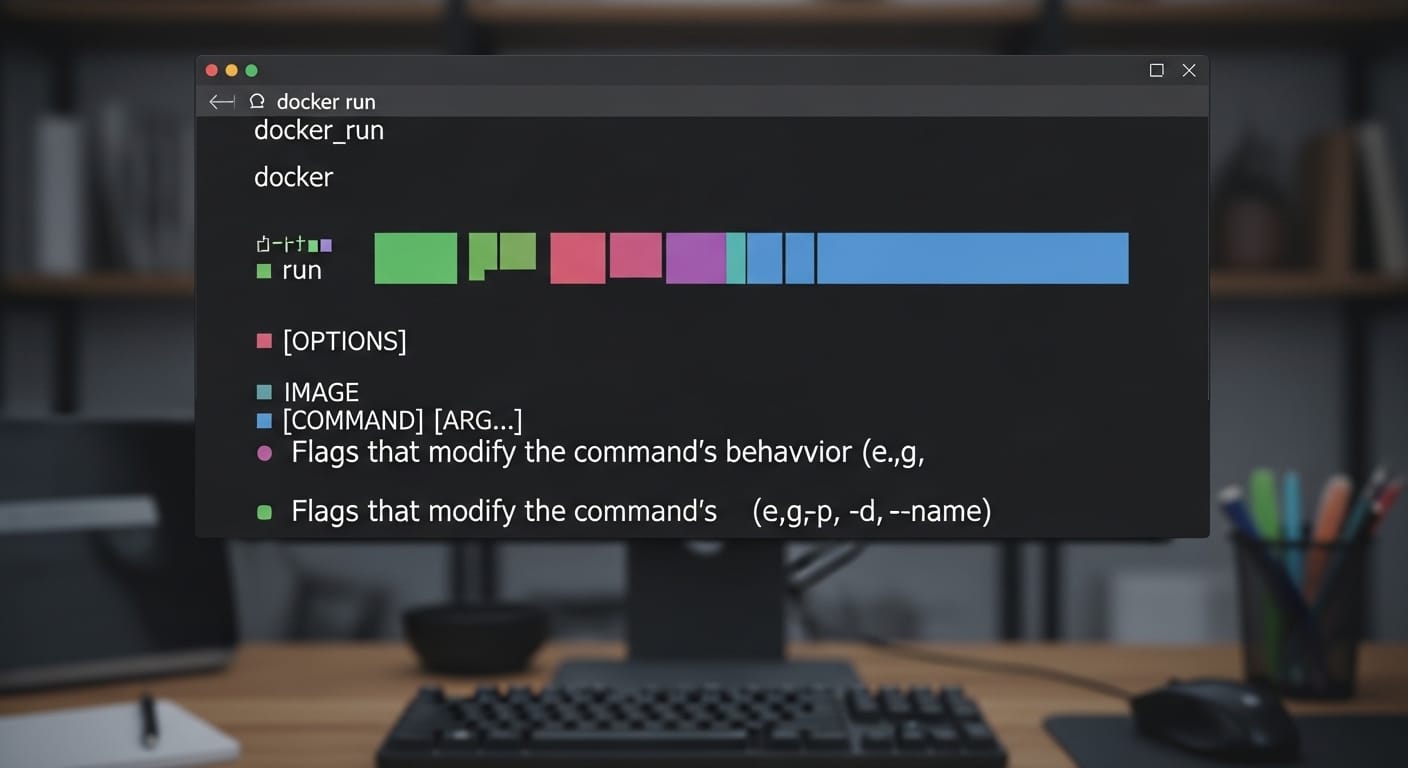
At its most basic level, the docker run command requires only an image name or ID to get started. However, the power of this command lies in its optional parameters that allow you to customize how your application behaves. The general syntax follows the pattern of docker run [OPTIONS] IMAGE [COMMAND] [ARG...]. You might add a --name to keep your container list from looking like a jumble of random letters or use --rm to automatically delete the container once it exits to keep your workspace clean. It’s a bit like ordering a coffee—the “image” is the base drink, but the “options” are the extra shots and syrup that make it exactly what you need for your current project, especially when you’re deploying or testing applications like modern CRM software examples in containerized environments.
Mastering how to run a docker image locally
Understanding how to run a docker image starts with having Docker Desktop installed and a specific image ready to go. Once you have your image—let's say it's a Go application or a simple web server—you simply type the command into your terminal. If you want to see exactly what’s happening inside, you can run it interactively. If things aren't working as expected, you can override the default entrypoint to drop into a shell for debugging. This flexibility is what makes containerization so resilient; you can tear down a failed container and start a fresh one in seconds with the exact same configuration.
Using docker run -it for interactive debugging
One of the most useful flags you'll ever use is docker run -it, which combines the interactive and pseudo-TTY modes. This is your go-to move when you need to "step inside" a container to see why a service is failing or to run commands manually in a bash shell. The -i keeps your standard input (STDIN) open, while -t allocates a terminal so the experience feels just like a regular SSH session. It’s the difference between watching a movie and being an actor in it; suddenly, you can interact with the environment in real-time, which is indispensable for those "why isn't this variable loading?" moments.
Managing persistence with docker run -v
By default, any data created inside a container vanishes when that container is deleted, which is why docker run -v is so critical for anything important. This flag allows you to mount a volume or bind a path from your host machine directly into the container. It means your database records or application logs can live on your physical hard drive while your application runs in its isolated bubble. If the container crashes or you need to update the image version, your data stays safe on the host, ready to be picked up by the next instance you spin up.
The power of docker run environment variables
Hard-coding passwords or API keys is a disaster waiting to happen, so using docker run environment variables is the professional way to configure your apps. By using the -e or --env flag, you can pass custom values into your container at runtime. For example, you can set NODE_ENV=production or pass a database URL without ever touching your source code. If you have a long list of variables, you can even point to a .env file using the --env-file flag to keep your command line from getting impossibly long. This keeps your configuration clean and makes it easy to switch between development, staging, and production setups.
Connecting to the world via docker run port
Since containers run in isolated network stacks, they can't talk to the outside world unless you explicitly define a docker run port mapping. Using the -p or --publish flag, you link a port on your host machine to a port inside the container. If your web server is listening on port 80 inside the container, you might map it to port 8080 on your laptop using -p 8080:80. This "exposes" the service so you can hit http://localhost:8080 in your browser and see your app in action. It’s essentially a bridge that lets external traffic cross the container boundary.
Scaling up: how to run docker compose
While single containers are great, most modern apps are a "multi-container" puzzle that requires knowing how to run docker compose. Instead of typing out ten different run commands for your web app, database, and cache, you define them all in a single compose.yaml file. A simple docker compose up command then reads that file and orchestrates the entire stack, setting up the networks and volumes for you. If you need to run a one-off command against one of those services, you can use docker compose run, which works very similarly to the standard run command but inherits the service's existing configuration.
Step-by-step: how to run docker container
When you’re ready to finalize your setup, the process for how to run docker container usually follows a logical loop: build, run, and check. You start by building your image with docker build, then launch it with your chosen flags—like -d to run in "detached" mode in the background so it doesn't hog your terminal. Once it’s up, you can verify it’s running by using docker ps, which shows you the container ID, the image it’s using, and any port mappings you’ve set up. If you need to see what’s happening "under the hood," docker logs is your best friend for viewing the application output.
Simplifying support with Kuikwit.com
Managing high-tech environments like Docker can be complex, and the same goes for managing your customer relationships across a dozen different channels. This is where Kuikwit.com becomes a vital part of your business stack. It’s a customer support platform that pulls all your scattered messages from WhatsApp, Facebook, and Instagram into one single, clean dashboard. You can assign chats to the right team members and use AI auto-replies to handle those repetitive "where is my order?" questions. It brings the same level of organization and centralized control to your customer support that containerization brings to your application deployment.
Docker Run Flag Comparison Table
| Flag | Name | Purpose | Example Usage |
| -d | Detached | Runs container in the background | docker run -d nginx |
| -it | Interactive + TTY | Allows terminal interaction | docker run -it ubuntu bash |
| -p | Publish | Maps host port to container port | docker run -p 8080:80 nginx |
| -v | Volume | Mounts a host path for data persistence | docker run -v /data:/app/data |
| -e | Env | Sets environment variables | docker run -e KEY=VALUE my-image |
| --rm | Remove | Deletes container automatically on exit | docker run --rm busybox |
| --name | Name | Assigns a custom name to the container | docker run --name my-web nginx |
The workflow shift from local to containerized
Moving from local development to a containerized workflow is mostly a shift in mindset. You stop worrying about whether the right version of Python or Node is installed on your machine and start focusing on the "blueprint" of the application.
The beauty of the docker run command is that it’s immutable—if it works on your machine using that specific image, it’s going to work on your colleague's machine and in the cloud. You get to stop being a "system administrator" for your own laptop and spend more time actually writing code. It takes a bit of time to get the flags right, but once you do, you'll wonder how you ever lived without it.
Don't be afraid to break things. One of the best ways to learn is to spin up a container, mess with the settings, and then just docker rm it and start over. It’s a safe sandbox for your wildest technical ideas.
Frequently Asked Questions (Google People Also Asked)
What is the difference between docker run and docker start?
The docker run command is for when you want to create and start a new container from an image. The docker start command is used to wake up an existing container that has been stopped, preserving its previous changes and configuration.
Does docker run pull an image automatically?
Yes, if the image you specify isn't found on your local system, Docker will automatically attempt to pull it from the configured registry (like Docker Hub) before attempting to start the container.
How do I stop a container started with docker run?
If you are in interactive mode, you can usually use Ctrl+C. If it's running in detached mode, you find the container name or ID with docker ps and then use the docker stop <name> command.
Can I change a port mapping on a running container?
Generally, no. You cannot update the port mapping of a container that is already running. You typically have to stop the container, remove it, and then execute a new docker run command with the updated -p settings.
What happens if I run docker run twice with the same name?
Docker will return an error stating that the container name is already in use. You must either choose a different name, stop and remove the old container, or use docker start if you wanted to reuse the existing one.
Why does my container exit immediately after docker run?
A container only stays alive as long as its primary process (the command or entrypoint) is running. If your application finishes its task or crashes, the container will stop. You can debug this by using the -it flag to run a shell and see the error messages.
Is there a limit to how many containers I can run?
The only real limit is your host machine's physical resources—CPU, RAM, and disk space. You can use docker stats to monitor how much of your computer's "soul" each container is consuming in real-time.
How do I run a specific command inside the container?
You add the command at the very end of your docker run instruction. For example, docker run ubuntu ls / will start an Ubuntu container, list the files in the root directory, and then immediately exit.
Anyway, that’s plenty to get you started. Go ahead and spin up a container; the worst that happens is you have to delete it and try again...